Storage Craft Shadow Protect recovery CD/USB
https://www.storagecraft.com/au/downloads/software-updates
Shadow protect recovery CD ISO file download. You enter serial number and get CD image
To recover from USB using this CD image
How To Create a Bootable ShadowProtect USB Drive
See http://clonezilla.org/clonezilla-live.php – free cloning tool
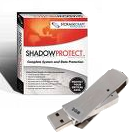 Normally I just convert all my discs into ISOs with the free ImgBurn program I mount the ISO with Virtual CloneDrive (also free).
Now, before you say “not BartPE and the HP Boot Flash Utility again”, we’re not using those old school tools.
Note: These instructions are assuming you have already purchased a licensed copy of ShadowProtect from StorageCraft, and are simply looking to turn a boot CD into a boot USB flash drive.
What You’ll Need
- ISO image of ShadowProtect or a ShadowProtect boot CD (471 MB)
- 1 GB or larger USB flash drive
- PeToUSB_3.0.0.7.zip (100KB)
- Windows 7 workstation (I used a 64-bit Ultimate box, but YMMV)
Use Rufus as alternative for Windows 10
Step-by-Step Instructions to Create the Bootable USB Drive
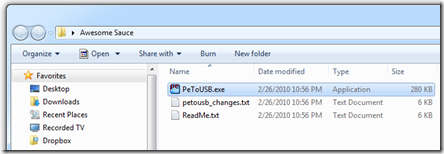
- Extract the downloaded PeToUSB_3.0.0.7.zip file into a folder on your desktop. You will see 3 files in there, but you only need PeToUSB.exe
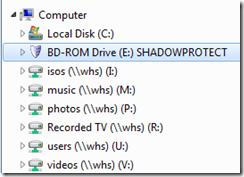
- Insert the physical ShadowProtect CD into your drive, or if you’re using an ISO, mount the ISO using Virtual CloneDrive (or some other ISO program).
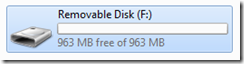
- Insert your USB flash drive.
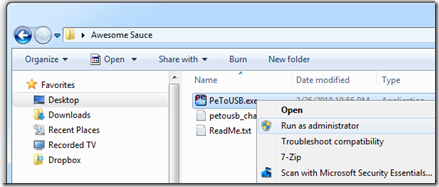
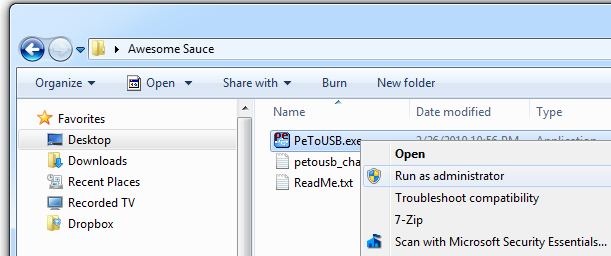
- Right-click the PeToUSB program, and choose RunAs Administrator.
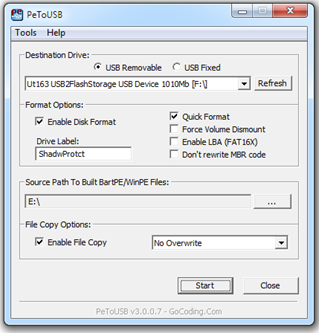
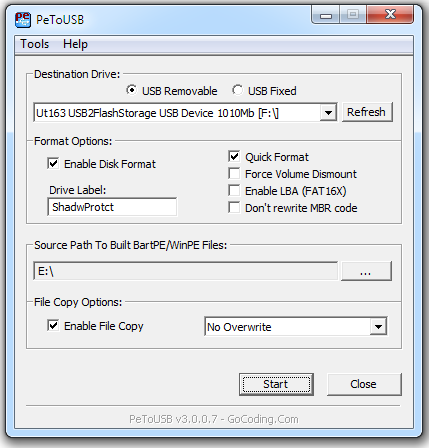
- Select your flash drive from the pull-down menu.

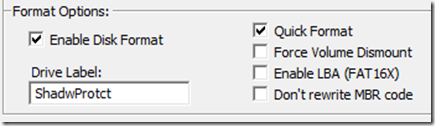
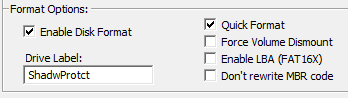
- Check Enable Disk Format and check Quick Format boxes.
- Browse to the ShadowProtect CD location.

- Click the Enable File Copy checkbox.
 Your settings should look similar to this:
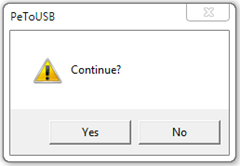
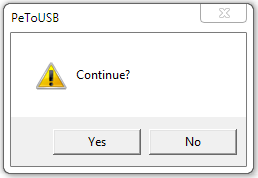
- Click Start. On the Continue screen click Yes.
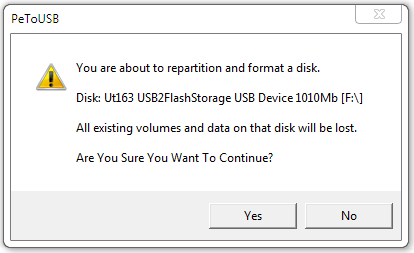
- On the Are You Sure You Want To Continue screen, confirm that the correct flash drive is about to be formatted, and click Yes.
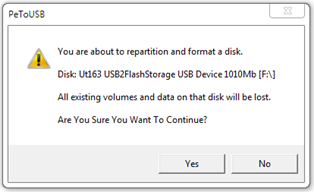
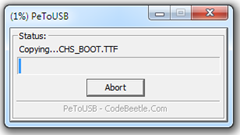
- The drive will be automatically formatted and the files will start copying.
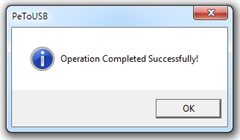
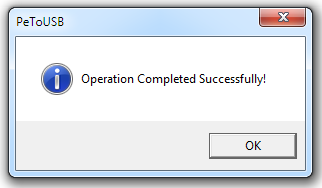
- When the format and copy are complete click OK.
- Safely Remove the drive, you’re done!






Now you can boot a workstation off the USB, plug in a USB drive large enough to hold the backup images, and create a backup of that target machine. Or, for some P2V action, you can use the free VMware Player (89.9 MB) to spin up that SPF as a virtual machine.